Disclosure: Save Image As Type is ours, and this blog is published by the same people. Anything said here about our own software is written by an interested party. One of the routes compared below is the file converter inside our own extension. It is listed after the tools your computer already has and after the desktop apps, and its limits are stated in its own section: 150 files per run, no HEIC, TIFF or camera RAW, and a ZIP as the output. For a few hundred files, or for any of those formats, this article sends you to a tool we do not make.
Can you bulk convert images without uploading them?
Yes, and you probably already own a tool that does it. Converting an image is arithmetic on its pixels. Nothing about that arithmetic needs a server, and it is fast: in the test further down, one laptop converted forty photos in about a second.
There are four places the work can happen on your own machine:
- the tools your operating system ships with,
- a desktop batch converter,
- the command line,
- a browser page or extension that converts locally.
They differ in how many files they take, which formats they read, and what you have to install. The short version: a Mac needs nothing installed, Windows needs one free app, and a browser-based converter is the quick route for a few dozen files in the formats the web uses.
An online converter that uploads is the fifth option, and for a folder it is the worst fit on practical grounds alone: every file crosses your connection twice. The privacy side of that trade is its own subject, covered in are online image converters safe.
How can you tell a converter is not uploading your files?
“No upload” is a claim, and with a browser-based tool it is a claim you can check in a minute. A web page is allowed to read a file you hand it. The File API lets web content ask you to select local files, through a file picker or drag and drop, and then read their contents inside the page.[1] A converter built this way decodes and re-encodes the file in your browser’s memory. A converter built the other way sends the bytes to a server first. Both show you the same drop zone.
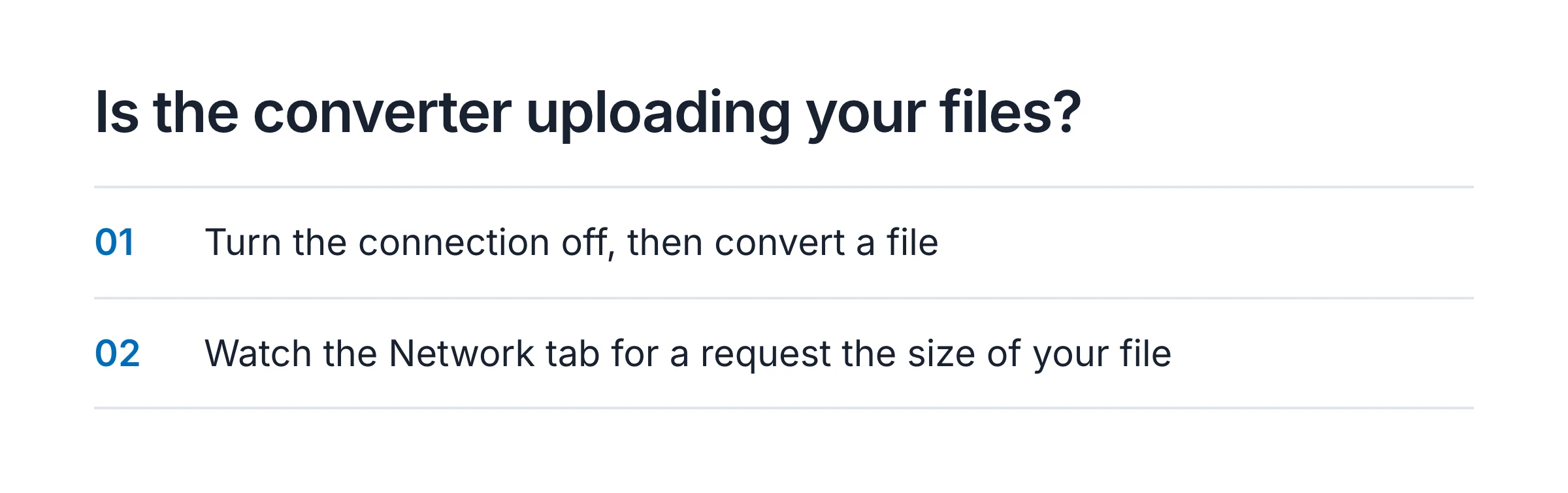
Two checks separate them:
- Turn the connection off. Load the page, disconnect from Wi-Fi, then convert a file. A local converter still works. An uploading one fails or hangs.
- Watch the Network tab. Open DevTools with F12, pick Network, and convert a file. An upload shows up as a request about the size of your file. This is the stricter check, because it also catches a page that converts locally and reports something home afterwards.
Desktop apps and command-line tools do not need the first check. A program running on your machine has the file already. Whether it also phones home is a question for its privacy policy, and for the tools named below the conversion itself is local.
What can your computer already do without installing anything?
A Mac converts a folder out of the box. Windows does not, and the Microsoft tool people reach for says so in its own documentation.
macOS: three built-in routes
Finder. Select the files, Control-click, choose Quick Actions, then
Convert Image, and pick a format and a size.[3] Apple’s own
example is turning an .heic photo from an iPhone into a .jpeg or
.png.[3] This is the least effort of anything in this article.
Preview. Open the files in one window, select them in the sidebar, and export. Preview writes HEIC, JPEG, JPEG-2000, OpenEXR, PDF, PNG or TIFF.[2] WebP and AVIF are not on that list as outputs, so Preview gets you out of a modern format and not into one.
sips in Terminal. macOS ships a command-line image tool, and one line
converts a folder:
mkdir converted
sips -s format jpeg -s formatOptions 85 *.webp --out converted
The originals stay where they are and the JPGs land in converted. On macOS
26.2 sips read both WebP and AVIF files in our test below.
Windows: nothing built in for a batch
Paint and Photos each save one image at a time. The tool that looks like the answer is PowerToys Image Resizer, Microsoft’s free shell extension for “bulk image-resizing”.[4] It resizes a selection of files in one pass. It does not convert them: the only place it asks for an output format is a fallback encoder for files it cannot write back in their original format, and the documentation states that “this isn’t a file type conversion tool”.[4]
So on Windows a batch conversion means installing something, or using the browser you already have. Both are below.
Which desktop apps convert a whole folder?
Three cover almost every case, and they suit different people.
XnConvert is the general answer. It runs on Windows, Mac and Linux, reads more than 500 formats and writes about 70.[6] With that range, HEIC from a phone, TIFF from a scanner, camera RAW files and WebP all go in the same queue. It is free for private or educational use, and a company has to buy a licence.[6] If you have several hundred files, mixed formats, or subfolders, this is the tool, and nothing browser-based competes with it.
IrfanView is the Windows veteran. It is a viewer first, with batch conversion among its listed features, and it is freeware for private, non-commercial use only.[7] It is small and fast, and its batch dialog is dense. People who already use it need nothing else.
ImageMagick is the command-line route, on every platform. The batch command
is mogrify, and it carries one trap to know about before you run it.
mogrify works like ImageMagick’s main command “except that the original image
file is overwritten”, unless you change the file suffix with
-format.[5] A format change is therefore safe by construction,
because the output has a new extension. A resize with no format change replaces
your originals. Sending the output to a separate folder removes the question:
mkdir converted
magick mogrify -path converted -format jpg -quality 85 *.webp
The same “85” is not the same file
We ran the two commands above on the same batch. The test: 40 WebP photos at 1600 x 900 pixels, 3.6 MB in total, converted to JPG on an Apple M3 Pro running macOS 26.2, on 11 October 2026.
| Tool | Command setting | Time for 40 files | Output size |
|---|---|---|---|
sips (built into macOS) | formatOptions 85 | 0.7 s | 13.2 MB |
ImageMagick 7.1.2-8 mogrify | -quality 85 | 1.0 s | 7.7 MB |
Speed is a non-issue at this scale. The size column is the finding. Both tools were asked for quality 85 and one produced files 1.7 times the size of the other, because a JPEG quality number is a setting inside one encoder and means nothing outside it. If the folder is headed for an upload limit or an email attachment, convert three files first and look at the sizes before running the rest. Why a converted image comes out bigger than the original goes through the causes.
Both sets of JPGs were also larger than the WebP originals, 3.6 MB in and at least 7.7 MB out. That is the normal direction when leaving a newer format for an older one.
What about a browser tool that converts locally?
A browser already contains decoders for every format the web uses and encoders for several. A page or an extension that puts those to work converts files with nothing to install beyond the browser. The trade is range: a browser reads what browsers read, and that excludes most of what a camera or a scanner produces.
Squoosh, from Google’s Chrome team, is the reference example of a local web converter. Its README states that it “does not send your image to a server” and that all compression “processes locally”, and it lists what its analytics collects: basic visitor data and the before and after file sizes.[8] It gives you fine control over one image at a time, with a live preview, so a folder means repeating the steps for every file.
Our extension’s file converter is the batch version of that idea, and this is the part of the article where we are describing our own product. Click the extension’s toolbar icon and press the Open the file converter button in the popup, or open it from Settings. Drop files on the page, pick them with the file dialog, or paste an image from the clipboard. Pick JPG, PNG, WebP, AVIF or PDF, and press Convert and save. One file downloads directly. Several arrive as a single ZIP.
The files are read by the page and converted in the browser. No image and no filename is sent anywhere, and both checks from earlier in this article pass: it works offline, and the Network tab shows no upload. What the Chrome and Edge builds do send, unless you turn it off in Settings, is an anonymous usage event per converted file that records the output format. The Firefox build sends nothing at all.
Where the extension’s converter stops
- 150 files per run. Drop more and the rest are refused with a message. Run it again for the next 150, or use a desktop tool.
- Web formats only. It reads JPEG, PNG, GIF, BMP, WebP, AVIF and SVG. A HEIC file is listed as unsupported, and TIFF and camera RAW are not recognised.
- No folders. Subfolders are not walked and no directory structure is kept. You select the files themselves.
- Output is a ZIP in your downloads folder, not converted files beside the originals.
- Settings are global. Quality, resizing, the filename template and the save folder come from the extension’s Settings. There is no per-run quality slider on the converter page.
- Animations flatten. An animated GIF or WebP converts to its first frame.
- Metadata is dropped. The files are redrawn through a canvas, so EXIF data such as camera model and GPS position does not survive. That is a privacy benefit for photos you are about to share and a loss for a photo archive.
The same extension also handles the other half of the batch problem, saving every image from a web page in one format, which no desktop converter does.
Which route fits which job?
| Your situation | Use | Why |
|---|---|---|
| A few dozen WebP, AVIF, PNG or JPG files, any OS | A local browser converter | Nothing to install, done in a minute |
| Any number of files on a Mac | Finder’s Convert Image, or sips | Already there |
| Hundreds of files, or mixed formats | XnConvert | Reads 500+ formats, handles folders |
| HEIC, TIFF or camera RAW | XnConvert, or Preview on a Mac | Browsers do not decode them |
| A repeatable job, or a script | ImageMagick mogrify -path | One line, same result every time |
| A work computer where you cannot install apps | A local browser converter | A web page or an allowed extension needs no installer |
| One image, with fine control over quality | Squoosh | Live preview of the result |
| Photos whose EXIF data you need to keep | A desktop app with metadata options | Canvas-based converters drop it |
The last row cuts both ways. If the folder is going to a marketplace listing or a forum, losing the GPS coordinates is the outcome you want.
One habit applies to every row: convert into a new folder and keep the originals until you have opened a few results. Every lossy conversion throws detail away, and a JPG made from a WebP cannot be turned back into that WebP. If the files that would not open were WebP in the first place, the WebP problem, end to end covers why they exist and every way out, and AVIF to JPG does the same for the newer format.
Sources
- MDN: Using files from web applicationsPrimary source
That web content can ask the user to select local files, through a file input or by drag and drop, and then read the contents of those files in the page itself, which is the mechanism that lets a browser page convert a file with no server involved.
- Apple Support: Convert image file types using Preview on MacPrimary source
That Preview exports to HEIC, JPEG, JPEG-2000, OpenEXR, PDF, PNG or TIFF, and that more than one image is converted at a time by opening the files in one window, selecting them in that window's sidebar and exporting. Read .
- Apple Support: Perform quick actions in the Finder on MacPrimary source
That the Finder has a Convert Image quick action, reached by Control-clicking a file and choosing Quick Actions, which asks for a format and a size, and that Apple's own example is converting an .heic photo to a .jpeg or .png image. Read .
- Microsoft Learn: PowerToys Image Resizer utility for WindowsPrimary source
That PowerToys Image Resizer is a shell extension for bulk image resizing, and that Microsoft's documentation says of its fallback encoder setting that this is not a file type conversion tool and only works as a fallback for unsupported file formats. Read .
- ImageMagick: magick mogrifyPrimary source
That mogrify behaves like magick except that the original image file is overwritten with the requested changes, unless the file suffix is changed with the -format option. Read .
- XnConvert: product pagePrimary source
That XnConvert is a batch image converter for Windows, Mac and Linux, compatible with more than 500 formats and exporting to about 70, free for private or educational use, with a paid licence required for use in a company. Read .
- IrfanView: what is IrfanViewPrimary source
That IrfanView is a graphic viewer for Windows, provided as freeware for private, non-commercial use only, and that batch conversion with multithreading is one of its listed features. Read .
- GoogleChromeLabs/squoosh: READMEPrimary source
That Squoosh states it does not send your image to a server and that all image compression processes locally, and that it uses Google Analytics to collect basic visitor data and the before and after image size value. Read .